
Creating a Social Media Image
Setting up Firefox
- Open up Firefox
- Click the 3 bars located in the top right of the window
- Click "Options"
- Scroll until you see "Files and Applications"
- Under "Downloads", check the radio button "Always ask you where to save files"
Getting the project images
Only perform this step if you do not already have the project images for this website.
- Open up Firefox
- Go to the project website
- Anywhere on the website content, right click and then click "Inspect Element (Q)" or press Q
- At the top right corner of the Inspect Element window, click the "Responsive Design Mode" icon, or press CTRL + SHIFT + M
- Repeat the steps below 3 times, for a page width of 1280, 768, and 320 pixels.
- In the bar at the top of the page, select the left text box (page width) and enter a page width (1280, 768 or 320 pixels)
- Right click anywhere on the website content and click "Take a Screenshot"
- Press "Save Full Page" in the top right corner
- Press the blue "Download" button
- Under the file name text box, enter - [domain-name]-[image-width]
- Save the image under - C:\Users\<user>\Inology Australia Pty Ltd\John Mitchell - Inology Shared Files\inology\website\potfolio\responsive-designs\1200px
Creating the social media imagee
- Navigate to - C:\Users\<user>\Inology Australia Pty Ltd\John Mitchell - Inology Shared Files\inology\website\potfolio\device-designs\mockups
- Open one of the .psd files in that folder, preferrably one that hasn't been used recently.
- In the bottom right, under the layers panel, double click the thumbnail that has an icon in the lower right hand corner that looks like this:
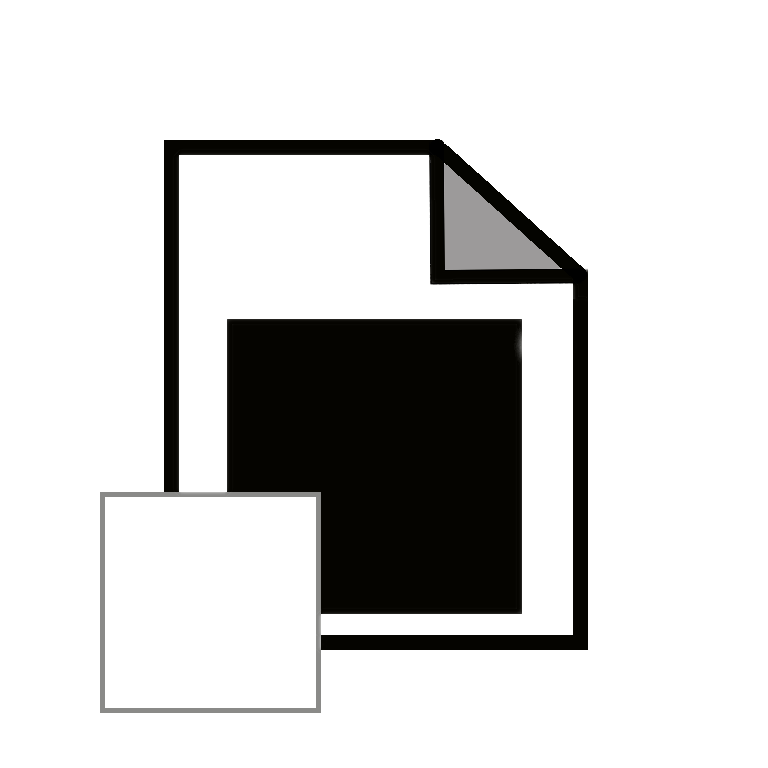
- If there is more than one layer with that icon, find the thumbnail that has an image that looks like the one pictured in the device's screen.
- Click "File" and then "Place...".
- In the pop up window, go to - C:\Users\<user>\Inology Australia Pty Ltd\John Mitchell - Inology Shared Files\inology\website\potfolio\responsive-designs\1200px
- Open the image with the correct width for the device:
- If using the desktop-mockup, laptop-mockup, or tablet-mockup, use the image with a width of 1280 pixels.
- If using the mobile-mockup, use the image with a width of 768 pixels.
- Adjust the image size and location to match the background layer:
- Locate a corner of the image, and while holding SHIFT, drag it until the width matches the background width.
- Ensure that the top of the image aligns with the top of the background.
- Press ENTER
- Go to "File" and then press "Save for Web & Devices..." or press ALT + SHIFT + CTRL + S
- Inside the opened window, click the dropdown that says "PNG-24" and select "JPEG" (not the Preset dropdown, but the one below it)
- Find the group titled "Image Size" towards the bottom of the right panel and ensure the width is 1280px
- Click "Save"
- In the newly opened window, under the file name text box, enter - [domain-name]-social-media
- Navigate to an easy to locate folder (there is no folder for this on the OneDrive yet)
- Click "Save" once again
- Send the saved image the John!